Assignments & Submissions 2.0, Tutor Roles, and Notes for Your Members
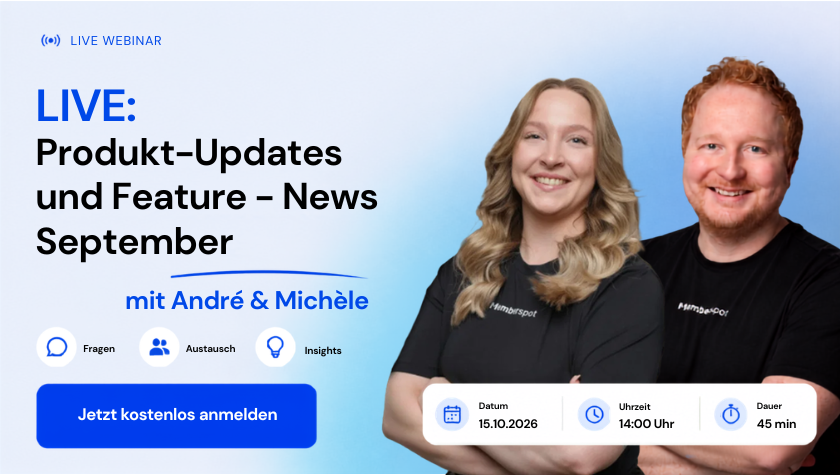
In October, we made major improvements to the tasks and assignments in Memberspot. If you’ve been using the feature since its launch this spring and felt something was missing here and there, chances are it’s there now. That’s exactly what the latest Memberspot Insider was all about—featuring a complete live demo of Version 2.
The recap is divided into four sections: Tasks & Submissions in Version 2, additional updates on AI labeling, certificates, and media, the new lesson notes in beta, and a preview of the upcoming webinars. If you missed the webinar or would like to review specific points at your leisure—here’s the recap.
Quick tip: You can find the full recording in our community under Courses → Recordings 2026. That’s where all of this year’s Insider webinars are posted.
Tasks & Assignments in Version 2
To help you get a feel for the new features, we demonstrated them in the webinar from five different perspectives—maybe you'll recognize yourself in one of them:
- Lisa, mentor: She supervises twelve mentees, assigns tasks with deadlines, and has so far been following up with them via email.
- Steffi, an online course instructor: She has 60 participants in her cohort—on Mondays, the assignments pile up, and she doesn't know where to start.
- Team Engage: Three tutors review assignments together; so far, they've been coordinating via WhatsApp.
- Felix, a member: submits his form and then doesn't know whether it was received or what happens to it.
- As an admin, you want to involve team members in the proofreading process without giving them access to the entire system.
Assign tasks as to-dos with deadlines
To-do lists for members have been available since the summer. What’s new is that a to-do item can now not only be checked off but also linked directly to a task for which the member submits a deliverable.
- In the admin panel, open the member's profile, go to " To-Dos," and add a new to-do.
- Instead of just a title and description, you can now select a task from the task catalog —which includes a quick search feature.
- You decide whether the assignment will be graded or ungraded, and you can optionally set a due date.
The member receives an in-app notification, a push notification, and a bulk email. If a due date is set, a reminder is automatically sent on that date. For Lisa, this means she no longer has to chase anyone up—her coachees can see at any time which tasks are pending and when they’re due.
Labels for Your Submissions
With a large number of members, the list of tasks grows quickly. Labels help you stay organized—whether you're working alone or as part of a team.
- You can create labels in the Tasks section and choose any name and color you like—such as “Check with Coach” or a priority level.
- For each submission, you can add or remove labels. A submission can have any number of labels; if there are too many, they are stacked in the list and displayed in full in the details view.
- Labels are an internal tool for you and your team. Your team members cannot see or assign them.
Filters and Saved Views
The list of charges can now be filtered by all relevant criteria:
- Submission Status and Deadlines (e.g., overdue submissions)
- Labels, members, and tutors —useful, for example, for covering for someone on vacation
- Courses and Individual Assignments
- Reading Status and Return Period
Once you 've found a combination that works for you, save it as a view and name it whatever you like. That way, you won't have to reset the filters the next day. You can return to the full list at any time by clicking "Reset Filters." You can also switch between "All Assignments " and "My Assignments " at the top—the latter shows only the assignments to which you've been assigned as a tutor.
Steffi uses this to create her own Monday overview instead of working her way through a long list.
Reading Status and History
Assignments you haven't opened yet appear in bold —so you can see at a glance what's new. If you like working this way, simply mark assignments you've already read as unread again. Within your current view, you can jump directly from one assignment to the next.
Another new feature is the activity log for each submission: You can see who provided feedback, changed the status, or made other edits. This helps you stay on top of things, especially when multiple tutors are working on the same assignments.
Deadlines for Assignments
In the Course Editor, under "Assessment " in the learning activity, you can set a time limit—choosing from the preset options of 1, 3, 5, or 10 days, or entering a custom deadline.
Good to know: The deadline is currently just a guideline for your learners; they can still submit their work after it passes. We want to prevent members from getting stuck in a learning dead end where they have to complete an assignment but can no longer submit it. It’s up to you to decide how to handle missed deadlines. Would you like a strict cutoff after the deadline? If so, let us know on the Ideas Board.
Define taxes more precisely
In the assignments, you will now specify in more detail what is to be submitted:
- Text: Length limits or guidelines.
- File Upload: File Size Limits—because everything ends up in your platform's storage.
- Custom Selection: Your own specifications for how the selection should be limited.
As always, you can also assign tasks to specific tutors. The larger your team, the more worthwhile this is—both for the quality of the work and for keeping track of submissions.
Comments, responses, and internal notes
Each submission has a comment feature that lets you interact with the member—including emoji reactions and replies. If the member has a question—such as when their submission will be reviewed—they can ask it right here.
In addition, there are internal notes that only admins and tutors can read. Team Engage uses these to coordinate directly on the assignment itself, rather than via WhatsApp. The comments section can be expanded or collapsed so you can focus entirely on the grading when needed.
Video Feedback
In addition to comments and ratings, you can also provide feedback via video: either recorded on the spot or uploaded as an existing recording. The video is then available to the member as feedback on their submission. Using the repeat mode, you can send an assignment to the next round if needed—a rating can be reset at any time.
Complete the submission without a rating
Not every submission requires points or a “pass.” Here’s an example from our own daily work: We use assignments to give applicants a task related to their field. A grade would be out of place here—anyone who applies and submits the assignment has, in fact, already done everything right.
In such cases, you can now mark the assignment as completed without giving a grade. The assignment is marked as complete in the system, disappears from your workflow, and the student knows they’ve finished. You can still provide feedback. This way, you don’t hinder either the student’s learning progress or their progress in the course.
Tutor role with exactly the right permissions
In addition to the individual admin permissions we introduced in the last Insider, you can create a separate tutor role by selecting "Add Role":
- Approval for all courses or only for selected courses.
- Access only to what is necessary for assignments and homework (and exams, if needed).
- No member details, no attribute groups, no access to the community—in the Members section, the user sees only the dues.
Here's what it looks like for your members
In their To-Do lists, members can see all pending tasks and submitted assignments along with their due dates. As soon as an assignment is graded or marked as complete, it moves to the "Completed" section. They can stay in touch with you through the comments. This way, Felix always knows when his assignment has been received and what the status is.
Good to know
- There is currently one feedback video per submission. If you want to replace a video—for example, because the audio was missing—reset the rating, remove the video, and upload it again.
- There are still some gaps in the notifications for admins and tutors —for example, regarding new comments. We'll be working on that next.
- Feedback videos are not currently transcribed.
More Updates
AI Labeling – A Reminder
Because this is an important compliance issue, we’ll keep reminding you of it in our upcoming webinars: You must label content created with AI as “AI-generated” or “AI-modified” —in lessons, in the community, and practically everywhere in the system. This is based on EU guidelines for labeling AI-generated content. If you created content without using AI, simply omit the label. How you use this feature is entirely up to you.
Protected Certificates and PDFs
Previously, anyone who had the link to a certificate could access the file. If such a link was shared publicly, search engines could, in the worst-case scenario, index it—along with the member’s name. That’s no longer the case: All access now requires a login and is therefore authenticated. Certificates and PDFs can no longer be easily shared externally.
In a Nutshell
- YouTube short links can now be included in lessons, community posts, and banners; portrait-oriented Reels now play correctly.
- SCORM progress is now included in the course statistics and the CSV export.
New in the Beta: Lesson Notes
To wrap things up, there was a little surprise for everyone in the beta program: notes in lessons. This feature will be rolled out in the beta shortly.
- Your members take notes directly within the lesson. For videos, the note automatically sets the current position in the video as a bookmark.
- On a dedicated Notes page, you'll find everything collected in one place and automatically organized by course—just one click, and you'll be taken directly to the saved point in the video.
- Even if you have 50 or 100 notes, you can quickly find what you're looking for using the search function.
Whether it’s a dance move, a physical therapy technique, or a detail from a baking class: Anything your members want to remember can be easily found at any time. The notes are intended as a basic feature for all courses—there’s currently no admin option to hide them. It’s up to your members to decide whether they want to use them. If you’d prefer not to offer this feature in certain courses or would like to see categories for notes, please let us know.
Not in the beta program yet? Sign up at community.memberspot.de —the program is free.
What's Ahead: Two AI Webinars in November
This November, we're diving deep into the AI Studio. Be sure to mark these dates on your calendar:
- Nov. 5 – AI Studio Insider: Focus on AI Agents – a detailed look at all the new features of your own agents and the platform agents.
- Nov. 19 – AI Studio Insider: Focus on Background Agents – with specific examples of how to set them up and use them.
There will also be two major releases at the end of the year: one for the community and a brand-new feature for live events.
In short
The October issue of *Insider* was all about tasks and assignments:
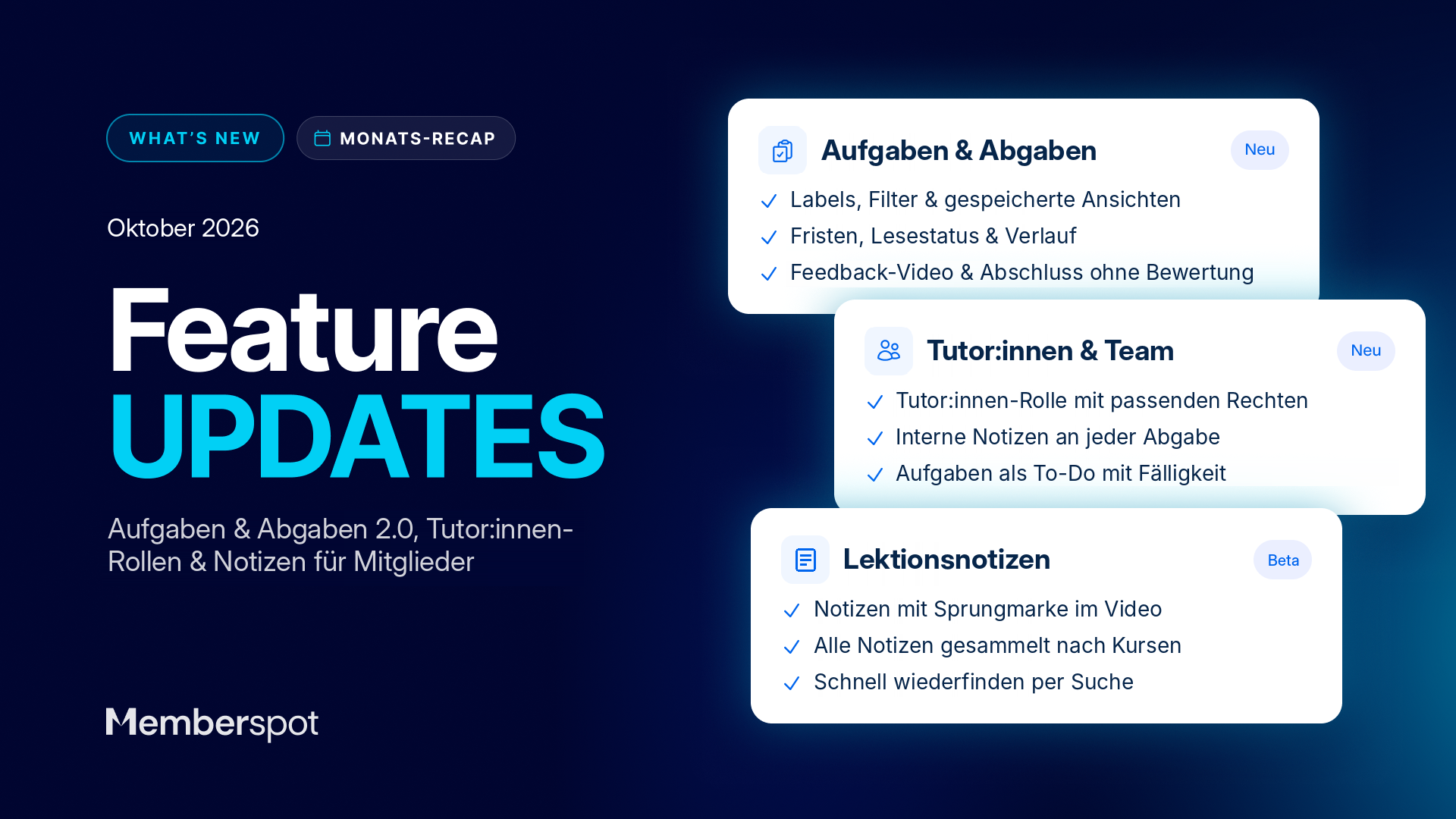
- Tasks & Assignments 2.0: To-dos with task details and due dates, labels, filters, and saved views, read status, history, feedback videos, and completion without a grade.
- Team: internal notes on each submission and a tutor role with exactly the necessary permissions.
- Additional updates: protected certificates and PDFs, YouTube Shorts and Reels, SCORM progress in statistics and export.
- Beta: Lesson notes with jump marks in the video.
Or in one sentence:
Tasks and assignments become part of a true team workflow—and your members always stay on top of things.
Have fun trying it out—and if you'd like, join our community at community.memberspot.de.
Your Member Spot 👋