


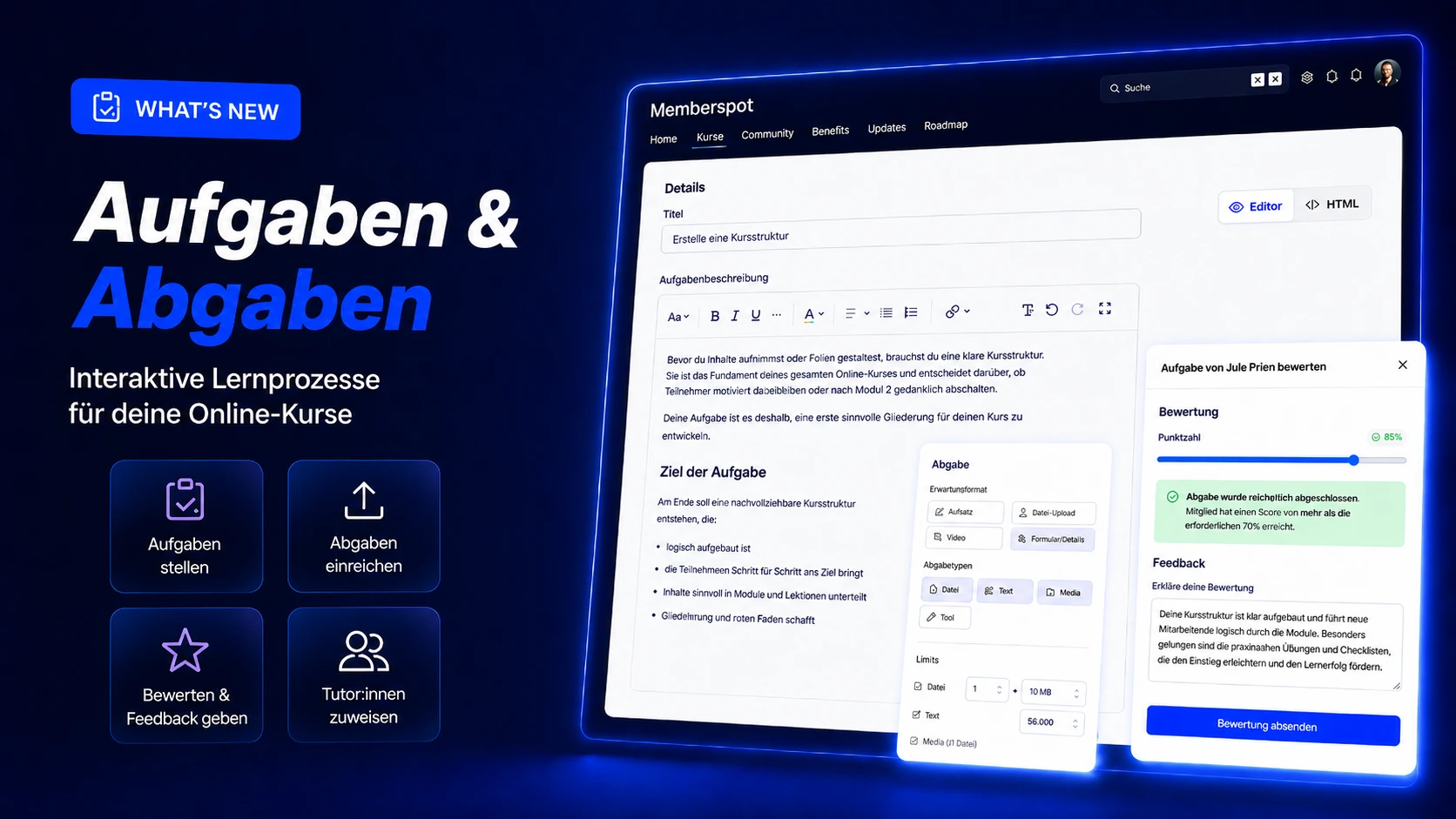
On July 2, André and Michèle gave a live demonstration of how the new Tasks & Deadlines feature works. Here's a summary—for everyone who was there and for anyone who missed it.
With Assignments & Submissions, Memberspot becomes an even more active learning system: You create assignments directly within the course, your members submit their work, and you or your tutors provide feedback, grade the submissions, and decide whether the member can move forward in their learning. Tutors can be members of your own team whom you assign this role via “Submission Permissions” so they can review submissions, provide feedback, and offer targeted support to members. This feature is available starting with the Scale plan.
In a nutshell
- Incorporate assignments directly into lessons
- Collect submissions as text, files, media uploads, or links
- Evaluate submissions, provide feedback, and allow resubmissions
- Centrally manage assignments — including tutor assignments
Assignments & Tasks — From Course Content to the Learning Process
Until now, members have been able to view content, complete lessons, or take exams. With "Assignments & Submissions," another component is now being added: real-world application.
You can assign specific tasks within your course to assess whether members have understood, reflected on, and applied the content in practice.
This could be, for example, a written reflection, an uploaded video, a completed PDF, a link to an external assignment, or another file.
The big difference: Members don't just consume content—they actively contribute to it. You gain insight into their progress and can provide targeted feedback.
Create tasks centrally and use them flexibly
Assignments are created centrally and then linked to lessons.
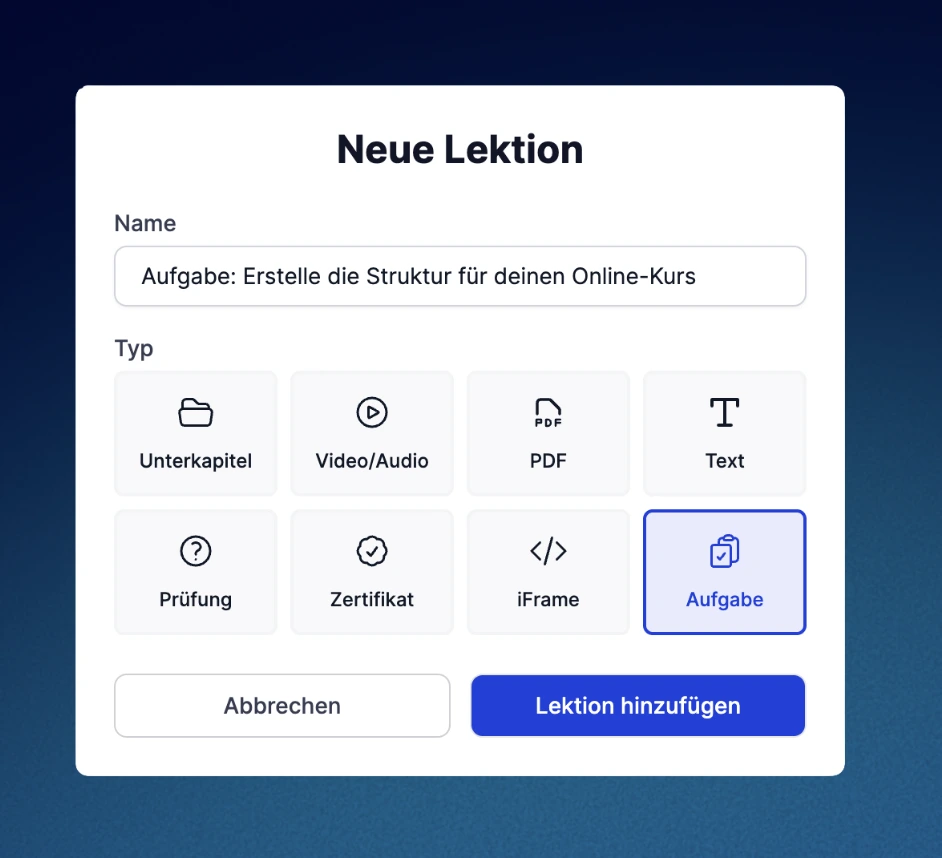
This means you can create an assignment once and then reuse it in different courses or in multiple places. For example, if you want to use the same reflection assignment in multiple courses, you don't have to recreate it each time.
You can adjust the order of the tasks within the lesson. This allows you to determine the order in which members should complete the tasks.
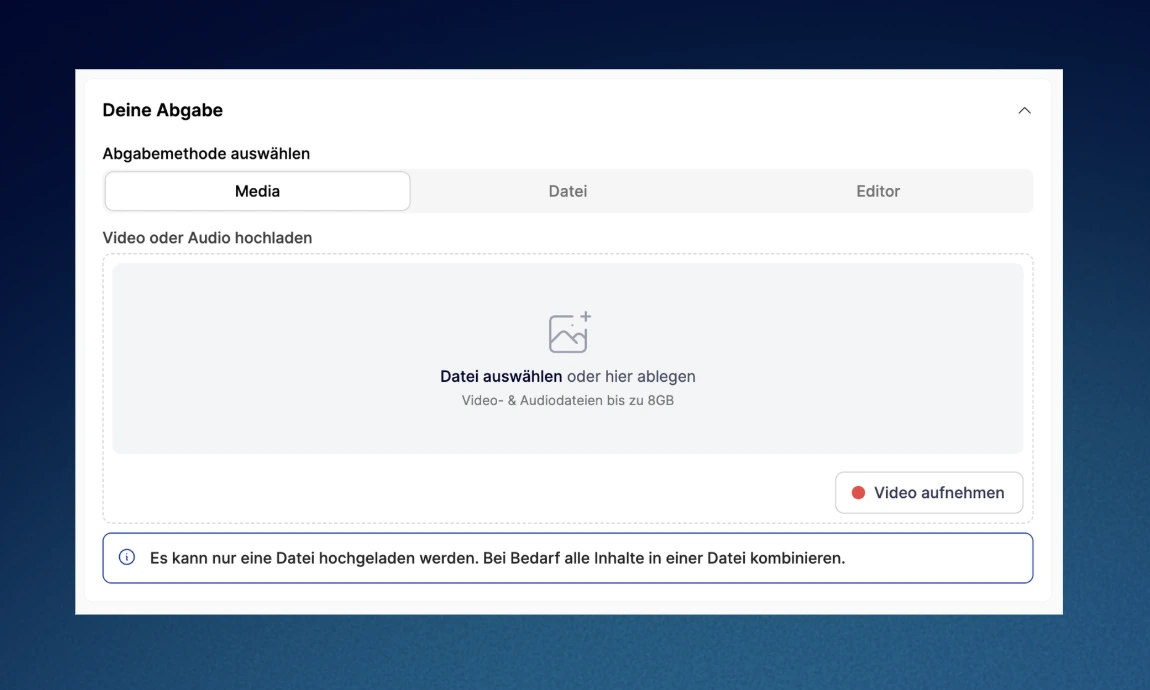
Submission types: text, file, media, or link
For each assignment, you can specify what kind of submission you expect.
The following options are currently available:
- Text via the editor
- File Upload: Images or Documents
- Media: Video or audio file (including via a video link)
- Link
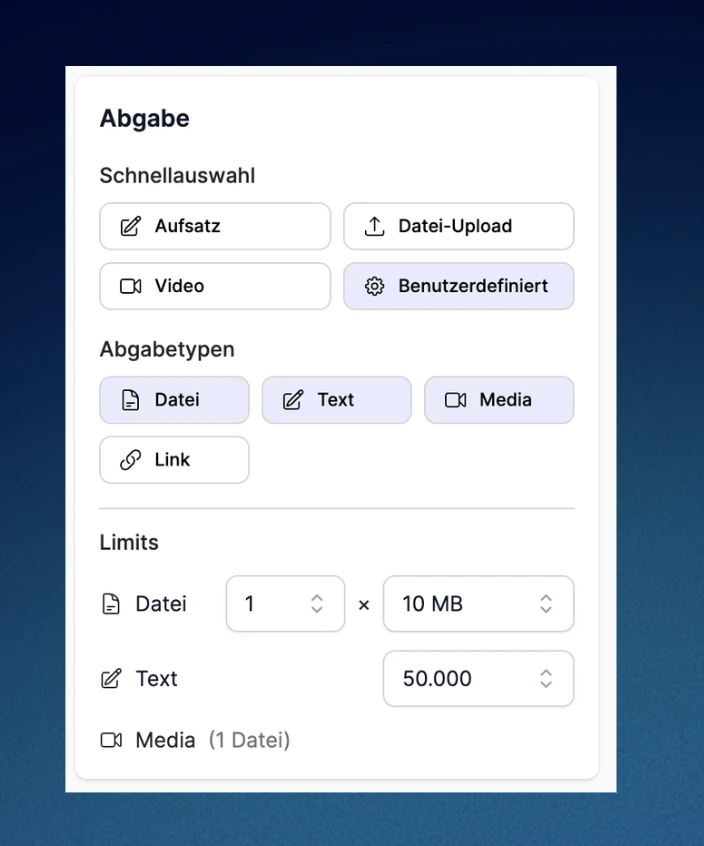
Using the quick selection feature, you can approve multiple submission types at once—the member then chooses which one to use.
Important: If multiple options are selected, you do not have to use every option. One appropriate submission is sufficient.
On the other hand, if you need a specific format, you can specify that clearly as well. For example: “Please upload a video.”
Assignments and Course Progress
Every assignment associated with a lesson must be submitted, reviewed, and—if graded—passed before the lesson is considered complete and the member can move on in the course.
This is especially important when using assignments designed to actively reinforce learning progress. At the same time, you should carefully consider where to link assignments to lessons: If the tutor is currently unavailable, your members’ course progress may be delayed because the assignment must be graded before they can continue.
Rating According to Your Rules
There are two methods available for the evaluation.
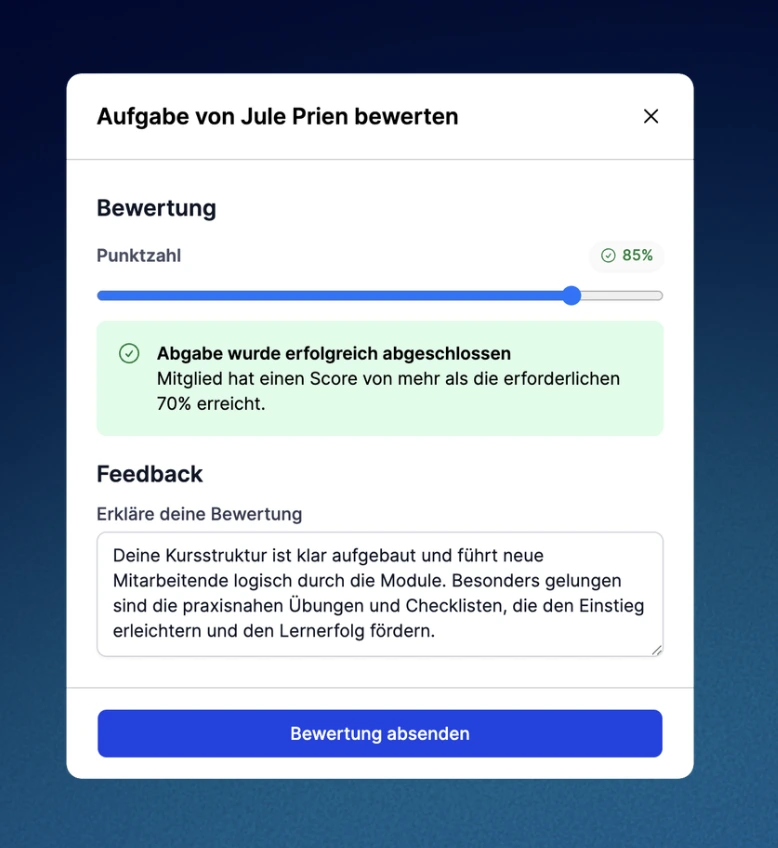
Percentage-Based Evaluation
You grade an assignment on a scale of 0 to 100 percent and set a passing score.
Example: A score of 70 percent or higher is considered a passing grade.
If a required assignment is not passed, a resubmission can be initiated. The member receives feedback and can work on the assignment again.
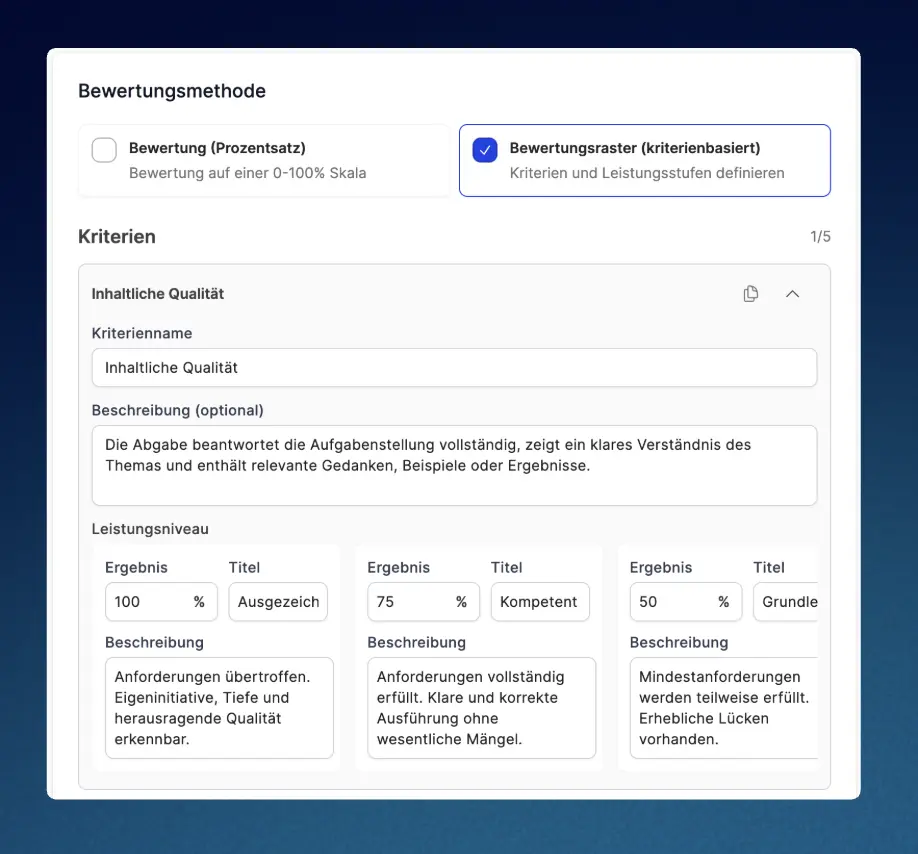
Evaluation Using a Criteria Matrix
Alternatively, you can use an evaluation grid.
To do this, you define your own criteria in the assignment's lesson settings and evaluate them for each area. This is particularly useful if you want to provide differentiated feedback—for example, on content, structure, completeness, or execution.
This makes the evaluation more transparent, and members can see more clearly where they're already doing well and where they still need to improve.
Manage Taxes Centrally
You can find assignments in the Members Area under Courses -> Assignments. You can find submissions under Members -> Submissions.
There, you can filter entries by status, for example:
- All
- Open
- Submitted
- Completed
- Try again
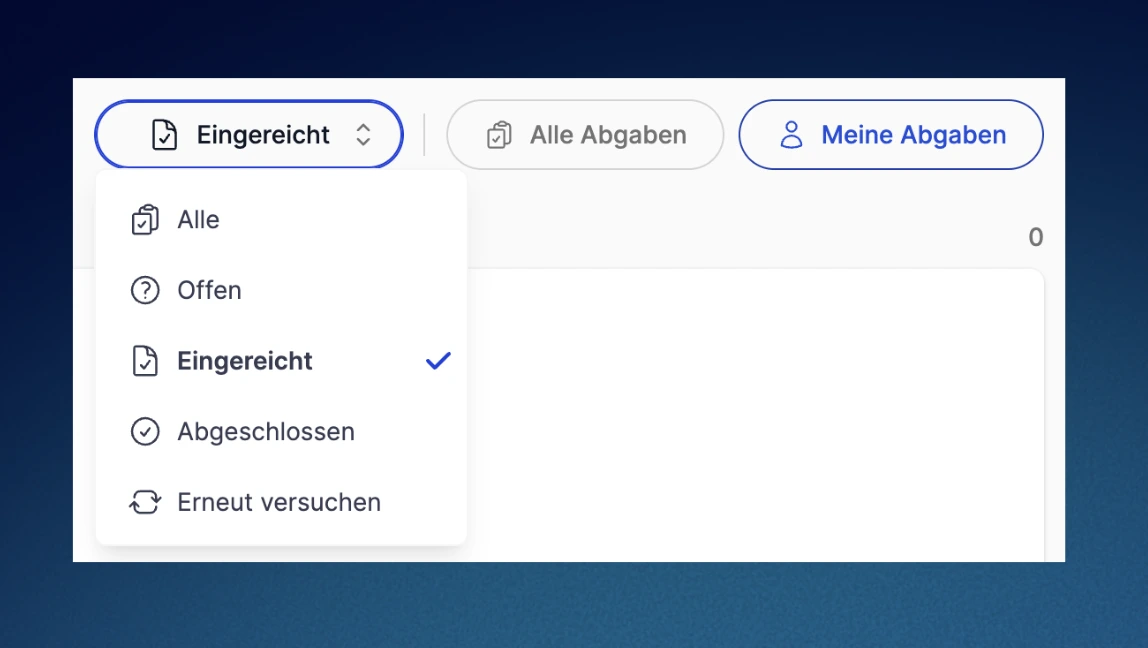
You can also switch between all assignments and the assignments assigned to you as a tutor. This is especially helpful when multiple people are providing feedback or grading assignments in a course.
When reviewing a submission, you can view it, grade it, provide feedback, and set its status. Members can see your feedback directly in their view and can respond to it. Important: Comments or feedback from members do not currently trigger any active notifications for tutors.
In the Dashboard/Activities section, you can see how many submissions are waiting for you via a counter and the "Submissions for Review" card.
From a member's perspective: save, submit, receive feedback
For members, the process is kept simple.
Open the assignment in the lesson and work on your submission. Depending on the submission type, your progress is saved differently: file and media submissions are saved automatically, while text and link submissions must be explicitly saved before submission.
Only when the assignment is actually submitted will it appear in the "Assignments to Be Graded" section for the tutor or course administrator. There, it can be viewed, graded, and provided with feedback.
After the evaluation, the member is actively notified—via in-app notification, push notification, and email. The member also sees the result, your feedback, and—if necessary—a message indicating that the assignment must be resubmitted.
What's Next
Tasks and responsibilities are being further developed.
Several enhancements were already discussed in the webinar:
AI Support for Corrections and Feedback
The plan is to integrate AI more closely into assignments and tasks. Possible examples include suggested corrections or draft feedback, which the tutor can then review, adjust, and approve.
The goal is not for AI to replace the evaluation, but to streamline the process.
Video Feedback and Timestamped Feedback
Since Memberspot relies heavily on video content, video feedback is also planned.
What's particularly exciting is that time-stamp-based feedback is being considered for video submissions. The tutor will then be able to provide feedback at a specific point in the video.
This is ideal for presentations, coaching sessions, role-playing, hands-on exercises, or video analysis.
Media Feedback and Text Revisions
We have also implemented the feature that allows tutors to upload files, screenshots, or annotations as feedback.
Regarding text submissions, it was also discussed that an editor would be helpful for making corrections. This would allow revision suggestions to be made directly within the system, rather than having to edit files externally.
Notifications and Storage Management
There are currently a few gaps in the notification system that need to be addressed. New submissions are already visible to tutors via badges, counters, and the dashboard; however, there are currently no active notifications via push or email. Comments or feedback from members also do not trigger any active notifications for tutors at this time.
The goal is to ensure that tutors are notified even more reliably in the future when new assignments or relevant feedback are submitted.
The management of old submissions—especially large video submissions—was also discussed. Plans are in place to provide better ways to archive and delete old submissions and to manage storage more effectively.
When You Should Use "Tasks & Assignments"
Use assignments and projects whenever you want to do more than just consume content.
For example, when members:
- are supposed to reflect on something
- should upload a result
- are supposed to submit a file
- are expected to complete a practical exercise
- Should I receive feedback from you or from a tutor?
- should continue their studies only after passing an evaluation
Our recommendation: Start with small, clearly defined tasks. The clearer the task, the better the result—and the easier it is to grade.
Missed the recording?
You can find the full webinar in our community:
Do you have feedback or would you like to suggest additional features? If so, feel free to use the Ideas Board in the Memberspot Community. There, you can submit feature requests and upvote suggestions from other users. To view the community, you must first log in or register.
Assignments & Submissions are now your new tool for taking more responsibility for your learning, getting more feedback, and making your courses in Memberspot more interactive.



.png)


.jpg)