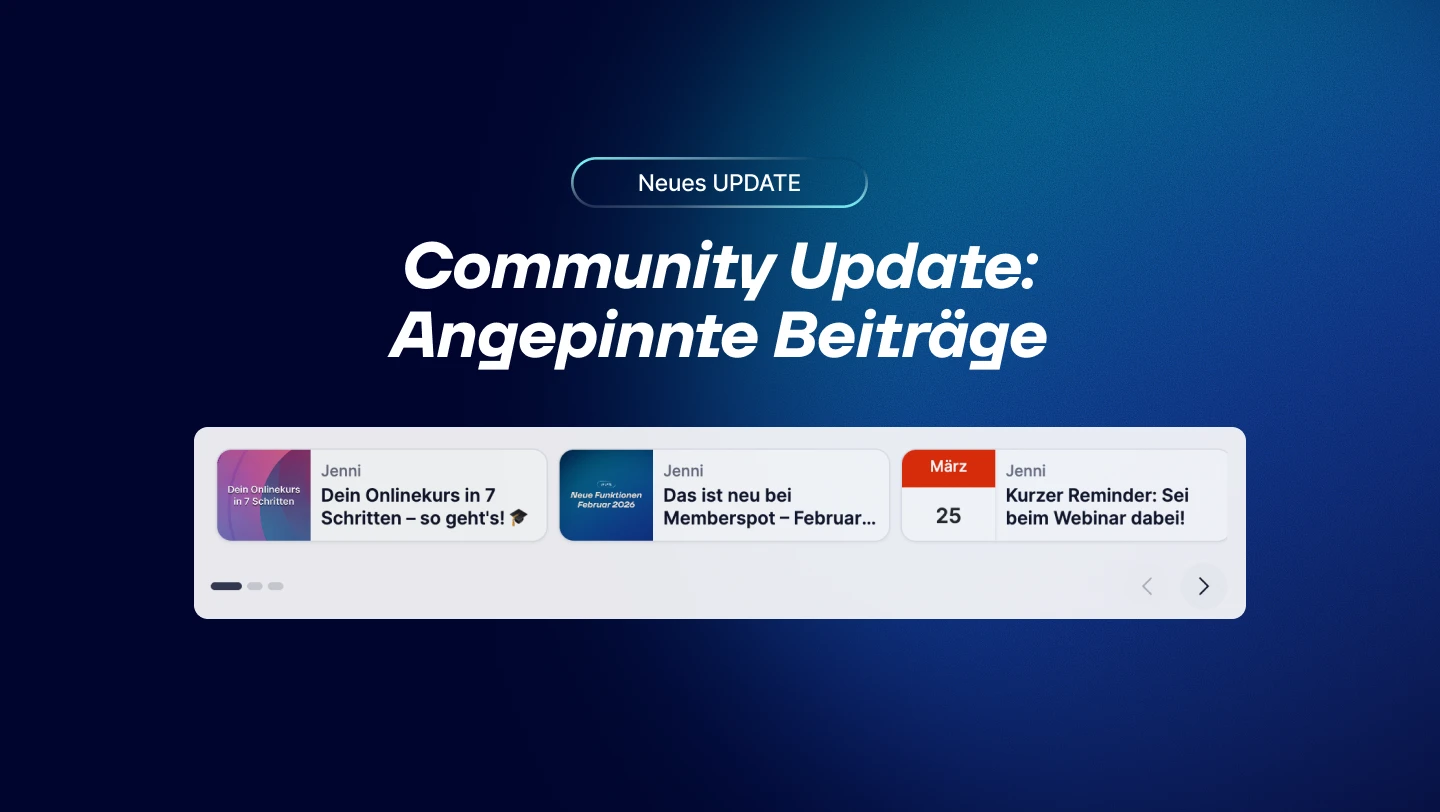
What's New — in 30 Seconds
- Pinned posts now appear as a carousel directly above the feed
- Up to 10 pins at a time, instead of the previous four
- Global Pins — visible across the platform in every Space and in the feed
- Automatic thumbnails and badges based on content type
- Our recommendation: 4 at most
Pinned posts haven't reached many people so far. A small pin icon in the feed—overlooked, forgotten, ineffective. We've completely rebuilt the feature.
What has changed — and why it matters
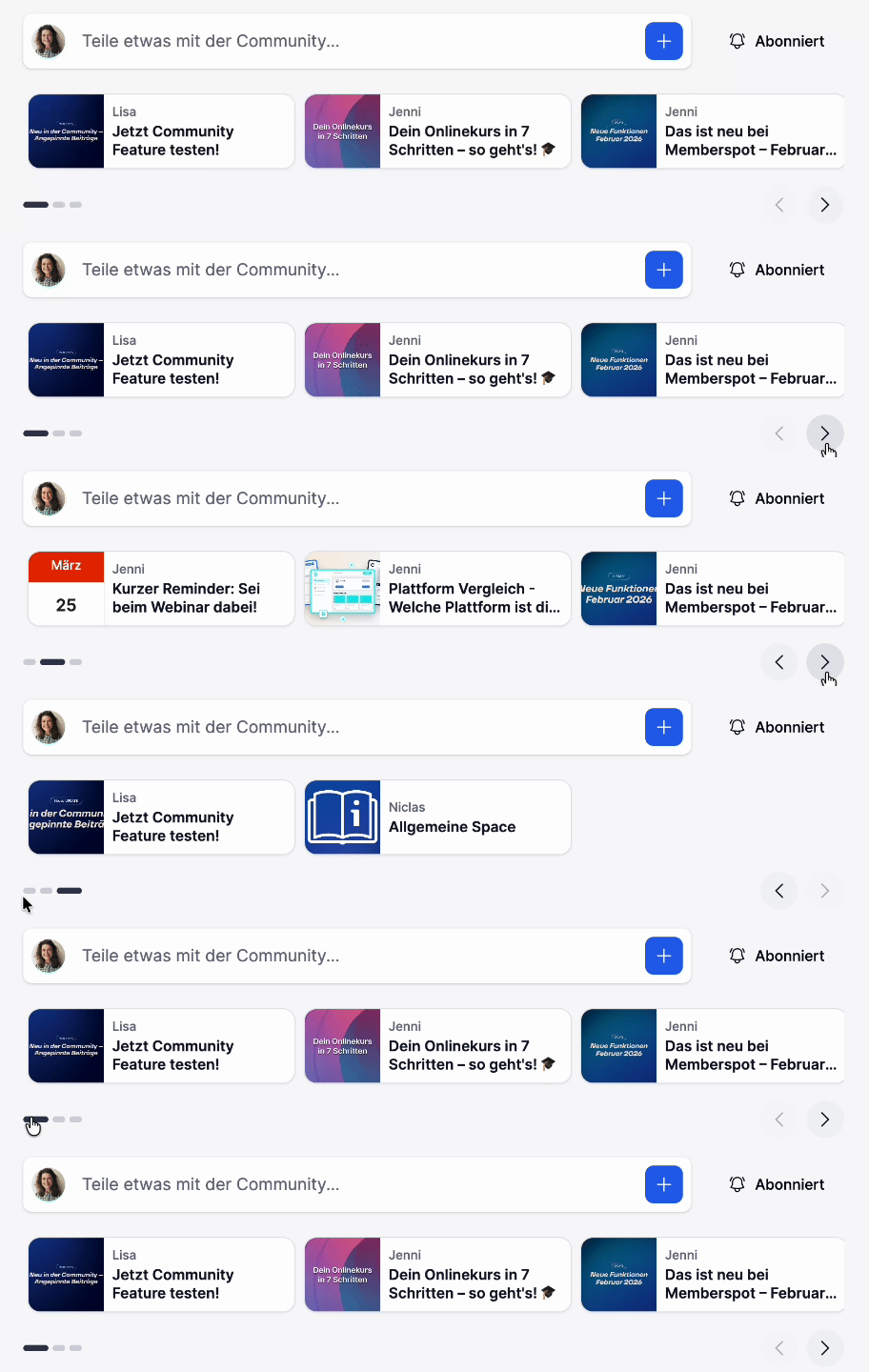
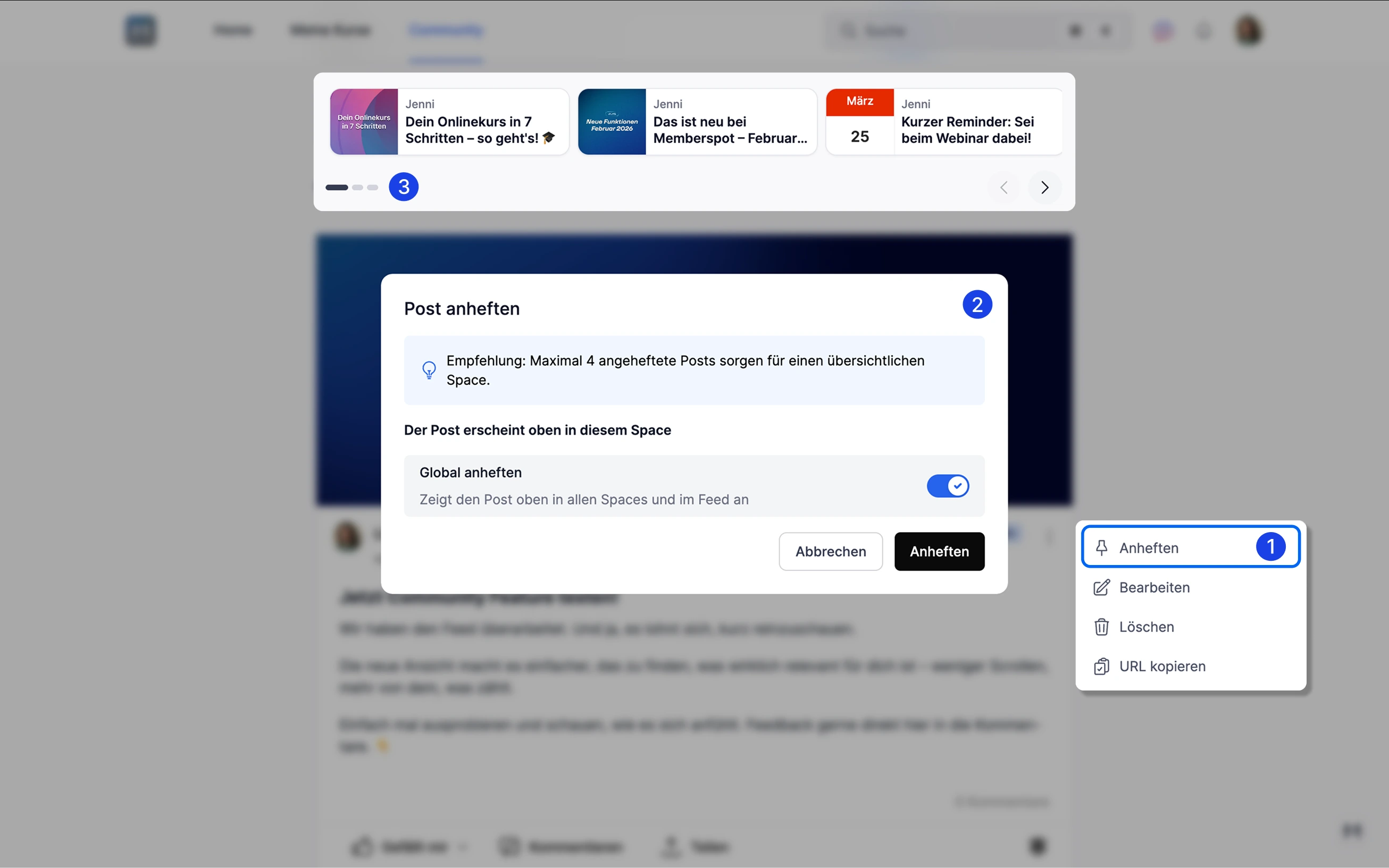
Pins now appear as a carousel directly above the feed. Three cards on desktop, two on mobile, with swipe navigation. No longer hidden among other posts—but the first thing members see when they open a Space.
The Carousel works in all layout types: Feed, Pro, Card, and List.
In addition: up to 10 pins at once, instead of the previous four. And the Carousel works in all layouts—not just the Pro layout, as was previously the case.
Global Pins — finally visible schoolwide
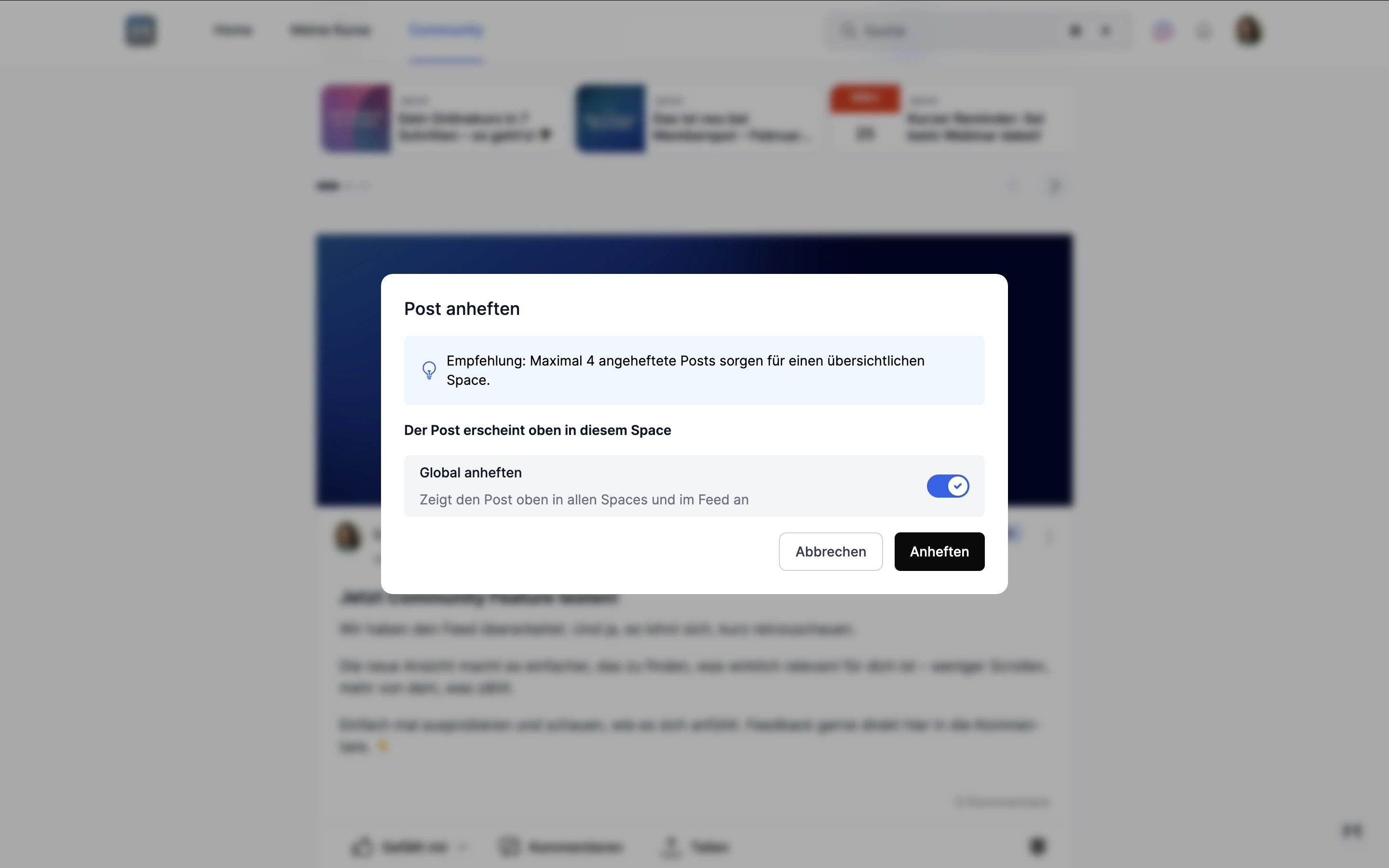
This wasn't possible before: You can now pin a post globally. It will then appear in every Space and in the feed—not just where you created it.
Space Pins and global Pins operate independently. A new Pin doesn't replace existing ones—that was one of the most frustrating issues with the old version. Pin announcements, events, or important notices that affect all members just once—everyone will see them without you having to share the same post five times.
Up to 10 pins at a time
The previous limit of 4 pins has been removed. You can now pin up to 10 posts at a time.
Here’s some honest advice: Once you have 4 pins or more, the carousel loses its impact—in this case, less really is more. The limit is 10, but most people will be better off sticking to 2–3.
Better cards in the Carousel
Each card displays the title, author, and space name. In addition, automatic enhancements are applied depending on the content type:
- Event posts display a date badge
- Poster submissions display the cover image as a thumbnail
- Images and galleries are displayed as previews
Here's how pinning works
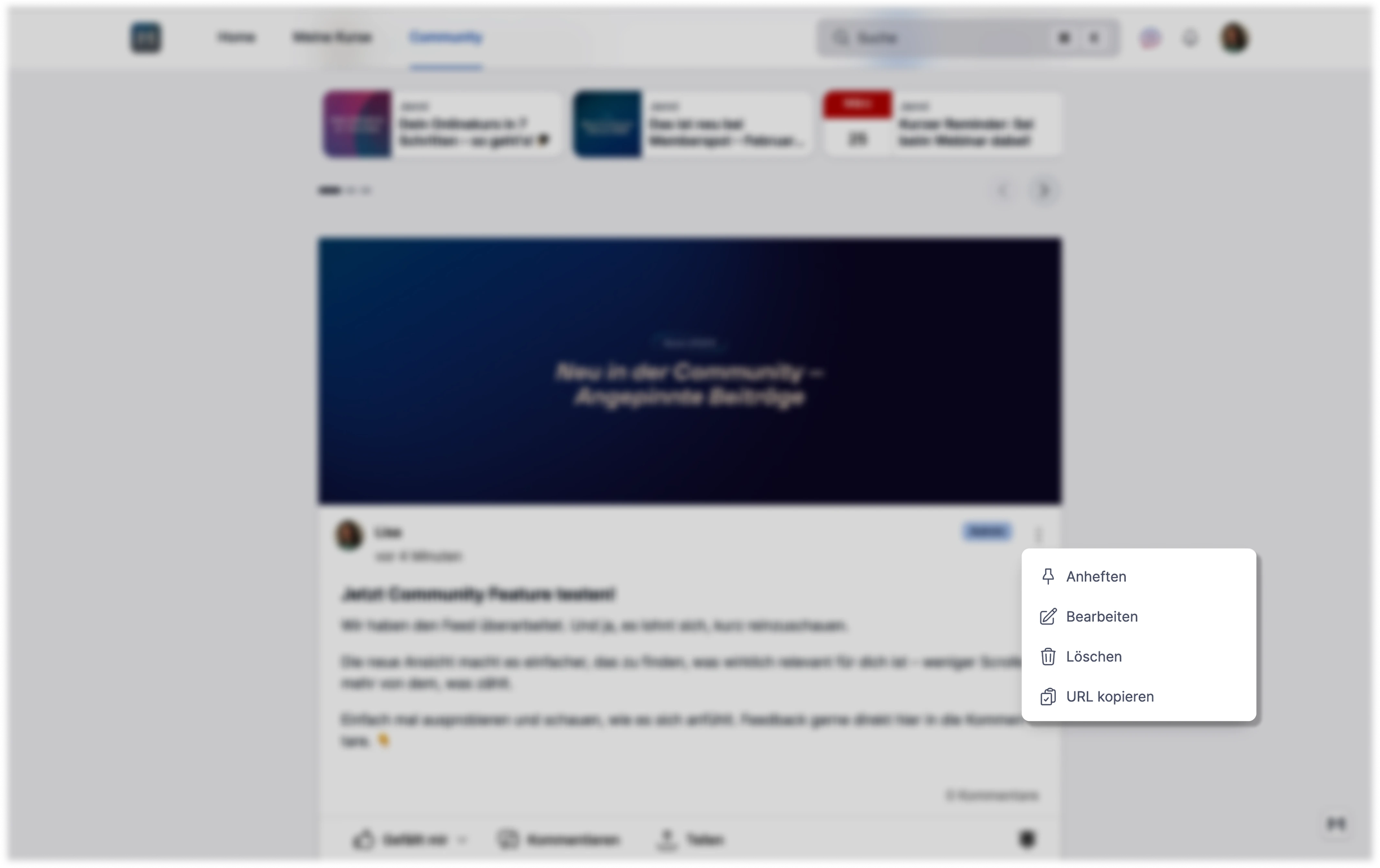
- Open the three-dot menu for a post
- Click "Pin"
- Select: Space PIN or Global PIN
- Confirm – the post will appear in the carousel immediately
To unlock: Three-dot menu → "Unlock". For more information, click here to view the help article.
What you can use it for
Announcements for all members – Pin important information globally so it’s visible in every space without having to post it multiple times.
Course Highlights per Space – Pin the most important resources or assignments directly above the feed for each learning area.
Highlight events – Event posts automatically display the date in the carousel – no more searching.
The Pinned Post Carousel is available for all Spaces and layouts.
Have fun testing it out! 🎉



%20V1.webp)
%201.png)