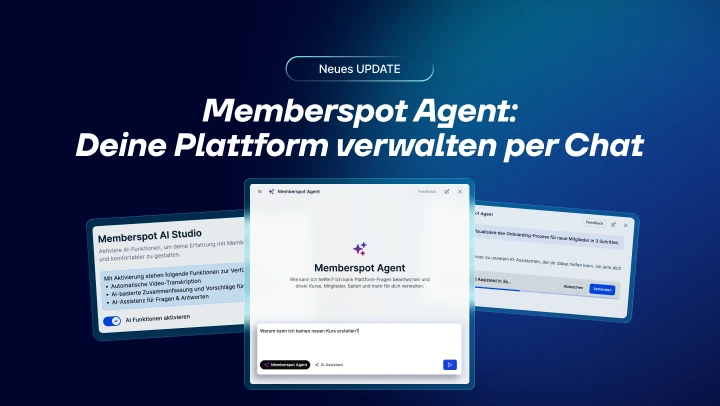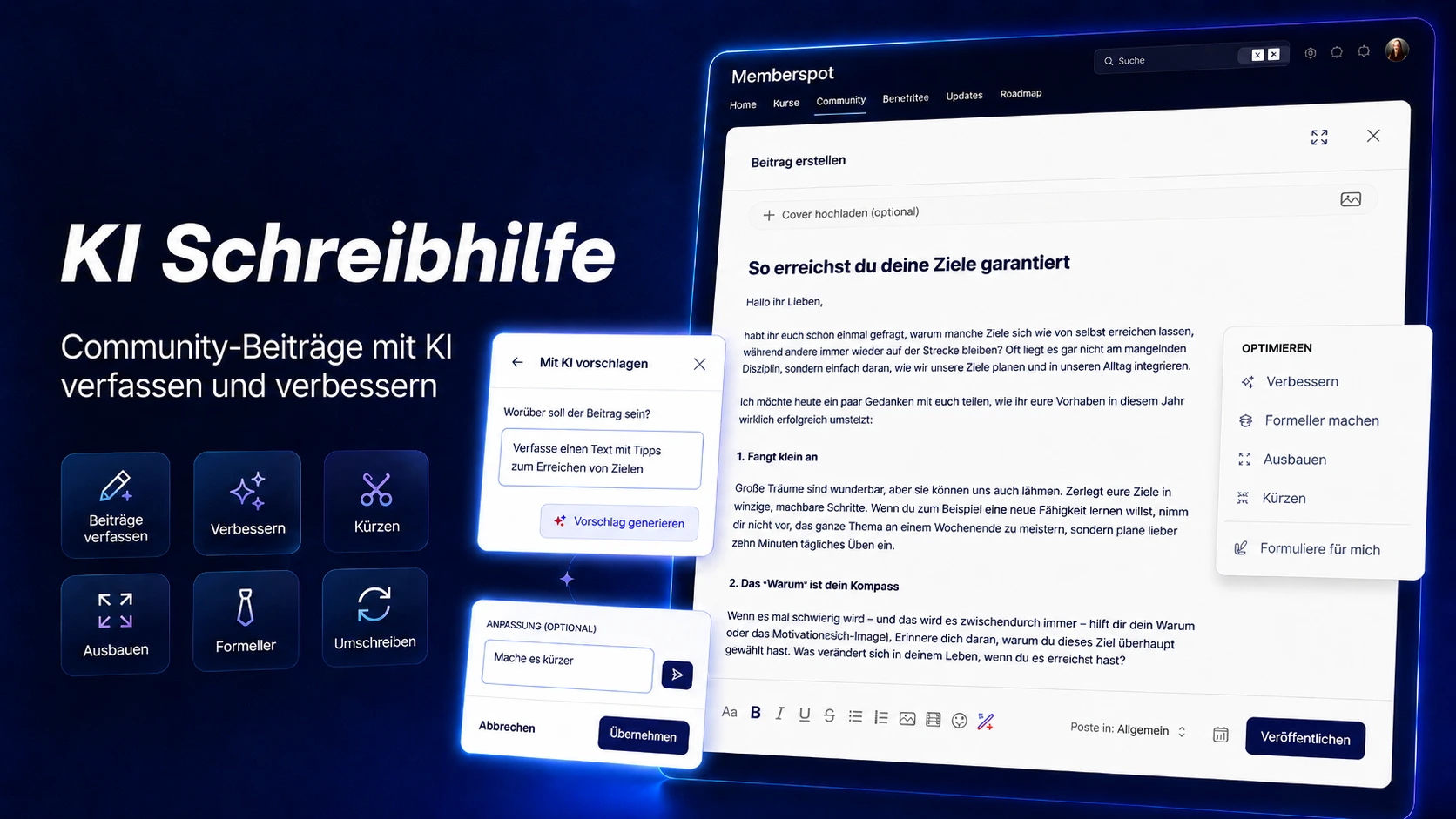
A good community thrives on contributions—questions, ideas, updates, successes, and discussions. But that’s often where things get stuck: You want to post something, but you don’t know how to start. The text doesn’t sound quite right yet. Or maybe you know what you want to say—but you’re not sure how to put it into words.
That's exactly what the AI writing assistant is for now.
It helps you write, rewrite, and optimize posts right in the Community Editor. A brief instruction becomes a finished text. A rough draft becomes a clear post. And a section that’s too long becomes a short, easy-to-understand version.
In a nutshell
- Write community posts using AI — right in the editor
- Generate a post from a brief set of instructions
- Improve, shorten, expand, or make existing texts more formal
- Review, accept, and publish the results
- Less writer's block, more activity in your community
Why AI writing assistance is important
Community posts are often the starting point for everything: exchanges, questions, feedback, motivation, and discussions. But a blank editor can be a hindrance.
Maybe you have an idea but no text yet.
Maybe you have a text, but it doesn't sound the way you want it to.
Or maybe you want to post something quickly without spending a lot of time polishing the wording.
The AI writing assistant doesn't make the decision for you about what you want to say. It helps you get your point across faster and more effectively.
A good community post isn't just filler. It's a conversation starter.
What the AI writing assistant can do
Write Texts (Generate Suggestions Using AI)
Click "Write for Me" in the menu . The "Suggest with AI" view will open, where you can start with a simple prompt. For example:
“Write a post about how to achieve your goals”
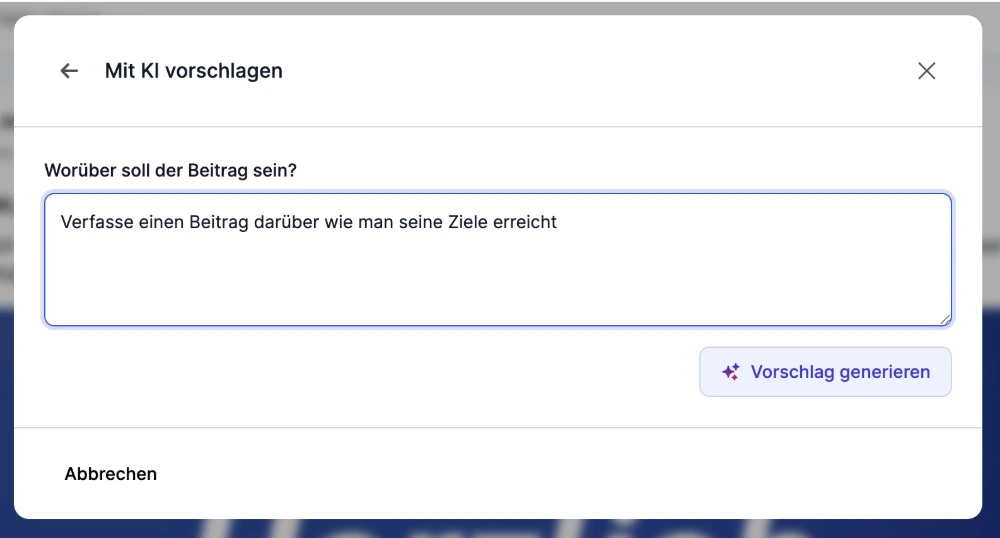
The AI uses this to create a first draft, which you can then edit further. In this Compose flow (the “Suggest with AI” view), you also have the freedom to enter your own instructions to refine the result (e.g., “Make it more motivational”). This is especially useful for regular reminders, weekly kickoffs, or announcements.
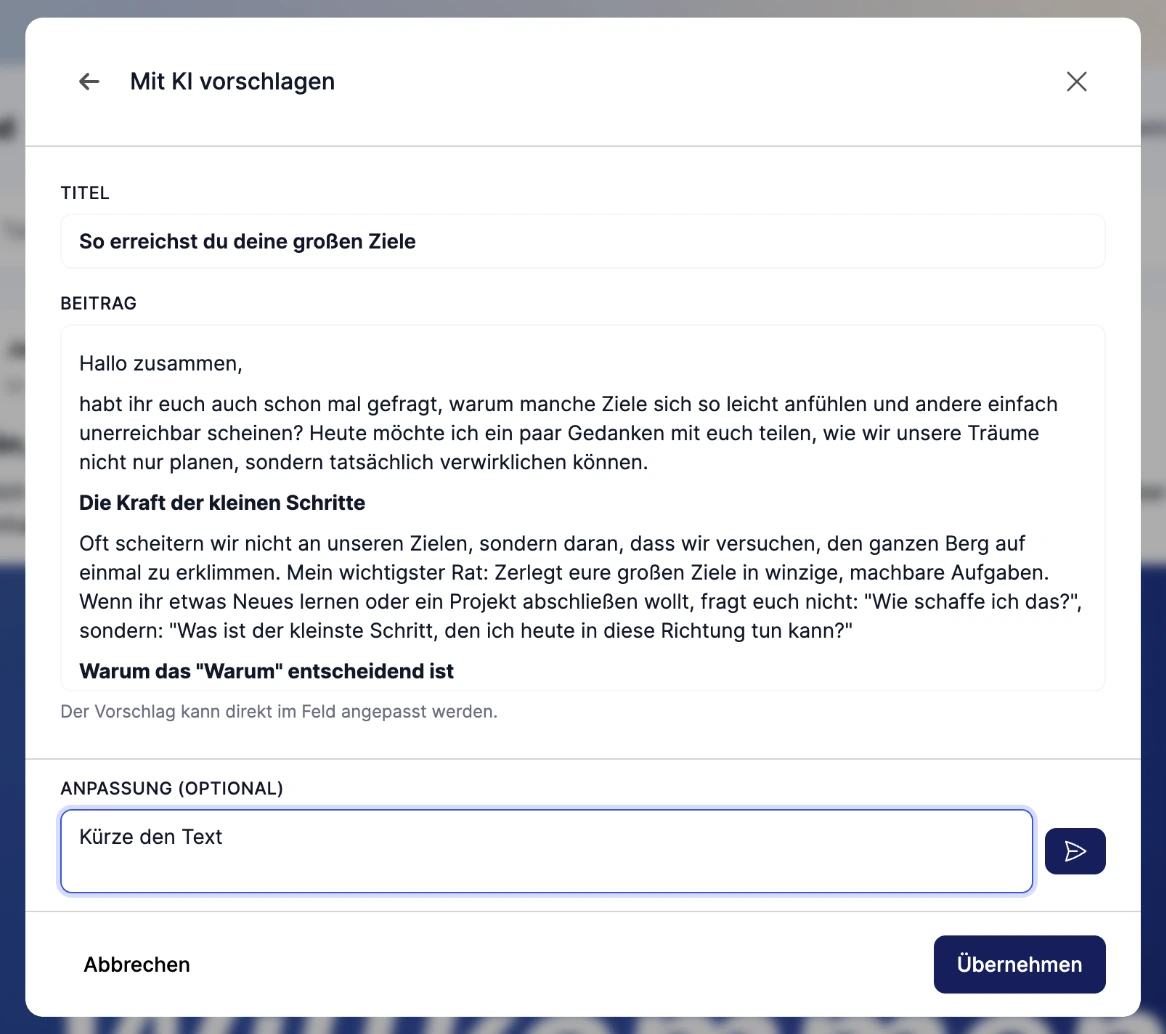
Instead of staring at a blank page, you'll get a first draft—and can keep working right away.
Title Generation
Still need a catchy title for your post? No problem.
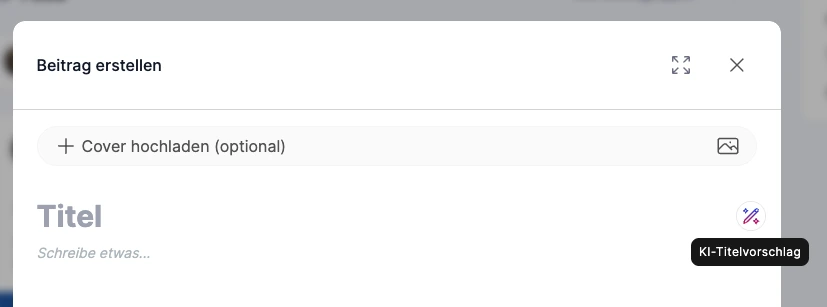
Just click in the title field and then click the small "AI Title Suggestion" icon . You'll immediately get a suitable title that you can accept as is or customize further.
Optimization for Existing Texts
The " Improve," " Make More Formal," " Expand," and " Shorten " functions are designed to quickly optimize existing posts. Your text must be at least three words long to use these functions. Unlike "Suggest with AI," these actions do not allow for custom instructions—optimization occurs automatically based on the selected function.
.webp)
Improve
Have you already written a post, but it doesn't quite sound right yet? Then "Improve" is the right choice. The AI optimizes phrasing, improves readability, and ensures that your text comes across as clearer and more professional—without changing the original message.
Make it more formal
Not every post needs to sound casual. For important updates, a more professional tone may be more appropriate. Important: This feature preserves your chosen form of address. “More formal” here refers to a clearer and more professional style of expression, not a switch to the formal “Sie” form of address.
With Formeller, the AI adapts the style of your post accordingly—without requiring you to completely rewrite the text.
Remove
Sometimes it's exactly the opposite: You have just a brief thought or a first draft and want to turn it into a more detailed post.
With "Expand," the AI adds more context, examples, or additional explanations. This turns an idea into a post that thoroughly informs and engages your members.
Cut
Sometimes a post is too long. Too many sentences, too many ideas, not enough focus.
By shortening your text, AI makes it more concise without losing the core of the message. Perfect for short community updates, quick notes, or posts that need to get straight to the point.
How to Use the AI Writing Assistant
Generate a Title: Before you start writing, you can also get help with the title. Just click the AI icon right next to the title field to automatically generate a suitable title for your post.
Community → Create a post → Select the AI icon → Enter instructions → Generate a suggestion → Review → Adjust if necessary → Apply → Publish.
Here's how it works:
- Describe — Tell the AI what the post should be about. For example: “Write a text with tips on how to achieve goals.”
- Suggest with AI — Using the "Formulate for Me" menu option, the AI generates an initial suggestion based on your description.
- Optimize — Choose whether you want the text to be improved, shortened, expanded, or made more formal.
- Customize — Only in the “Suggest with AI” section can you enter specific instructions, such as “Make it shorter,” to guide the draft.
- Apply — If the text is okay, copy it into your post and publish it.
So you remain involved in the process at all times. The AI doesn't just write a final version for you—it provides suggestions that you can review, edit, and accept.
Five Tips for Better Community Posts Using AI
1. You decide how detailed the post will be
AI can create a good piece of content based on either a brief idea or detailed instructions.
Not just: “Write a post about goals.”
Or, for example: “Write a motivational community post with three tips on how members can better achieve their goals in their daily lives.”
The more specific your instructions are, the more targeted the result will be. But you can just as easily start with a rough idea and work your way toward the finished post step by step.
2. Start with a draft, not with perfection
The first proposal doesn't have to be final right away. Use it as a starting point.
Often, all you need to do is generate the text once, then delete a few sentences, add some examples, or adjust the tone. This way, you can produce a good post more quickly without having to start from scratch.
3. Use the optimization features
Not every post is finished after the first draft.
If a text isn't quite right yet, you can have it improved, made more formal, expanded, or shortened. Often, even small adjustments can lead to a significantly better result.
4. Expand on brief ideas
Is there just one sentence on your mind? Perfect.
From “Today’s focus is on staying on track,” the AI can create a motivational post that includes an introduction, an explanation, and a question for the community. This is how small ideas regularly turn into great content.
5. Make your posts more interactive
A good community post doesn't just end. It invites a response.
For example, ask the AI to include a question at the end:
"Add a question at the end that encourages members to comment."
That way, a text becomes not just a post—but a conversation starter.
Examples of Good Instructions
For motivation:
“Write a motivational community post about how to get back on track after setbacks.”
For the start of the week:
“Write a short post to kick off the week with a question for the community.”
For Goals:
“Write a text with tips on how to achieve goals.”
For feedback:
“Write a friendly post that invites members to share their experiences.”
For announcements:
“Write a clear announcement for a new course section and explain what members can expect there.”
For reflection:
“Create a community post with three reflection questions at the end of the month.”
Bonus: More community activity with less effort
Many communities fail not because there is nothing to say, but because posts are made too infrequently.
With the AI writing assistant, you can post ideas faster, spark discussions, and regularly engage your members. Not because the AI is taking over your community—but because it makes it easier for you to get started.
You provide the ideas, context, and personality.
The AI helps with phrasing, structuring, and optimization.
After that, your community section will no longer feel quiet—it will feel lively.
Add-on for the finishing touches
● Plan content series — Get suggestions for multiple post ideas for a week or a month, such as “Motivation on Monday,” “Discussion on Wednesday,” and “Reflection on Friday.”
● Adjust the tone — Use AI to rephrase the same post in a more casual, formal, shorter, or more detailed way.
● Prepare comments — Don't just create posts; also come up with follow-up questions that will encourage members to respond.
● Create recurring features — For example, “Question of the Week,” “Success of the Day,” “Mini-Challenge,” “Reflection Prompt,” or “Community Check-in.”
🎁 To get started: Try out these instructions right away:
"Write an inspiring community post with three tips on how members can achieve their goals more easily. Keep your writing casual and clear, and end with a question."
Don't have any ideas for your next post yet?
Then let us suggest one for you.
Your community thrives on interaction. The AI writing assistant makes taking that first step easier.